
Adding queries
If you already have questions, add them one by one, paste a list or upload a file. Then assign a company and send them to AI systems.
When to use this
Manual entry is useful when you already have a query list, for example from your marketing team or website analytics, and want to check those exact questions. Use the “Add queries” tab in “Queries”.
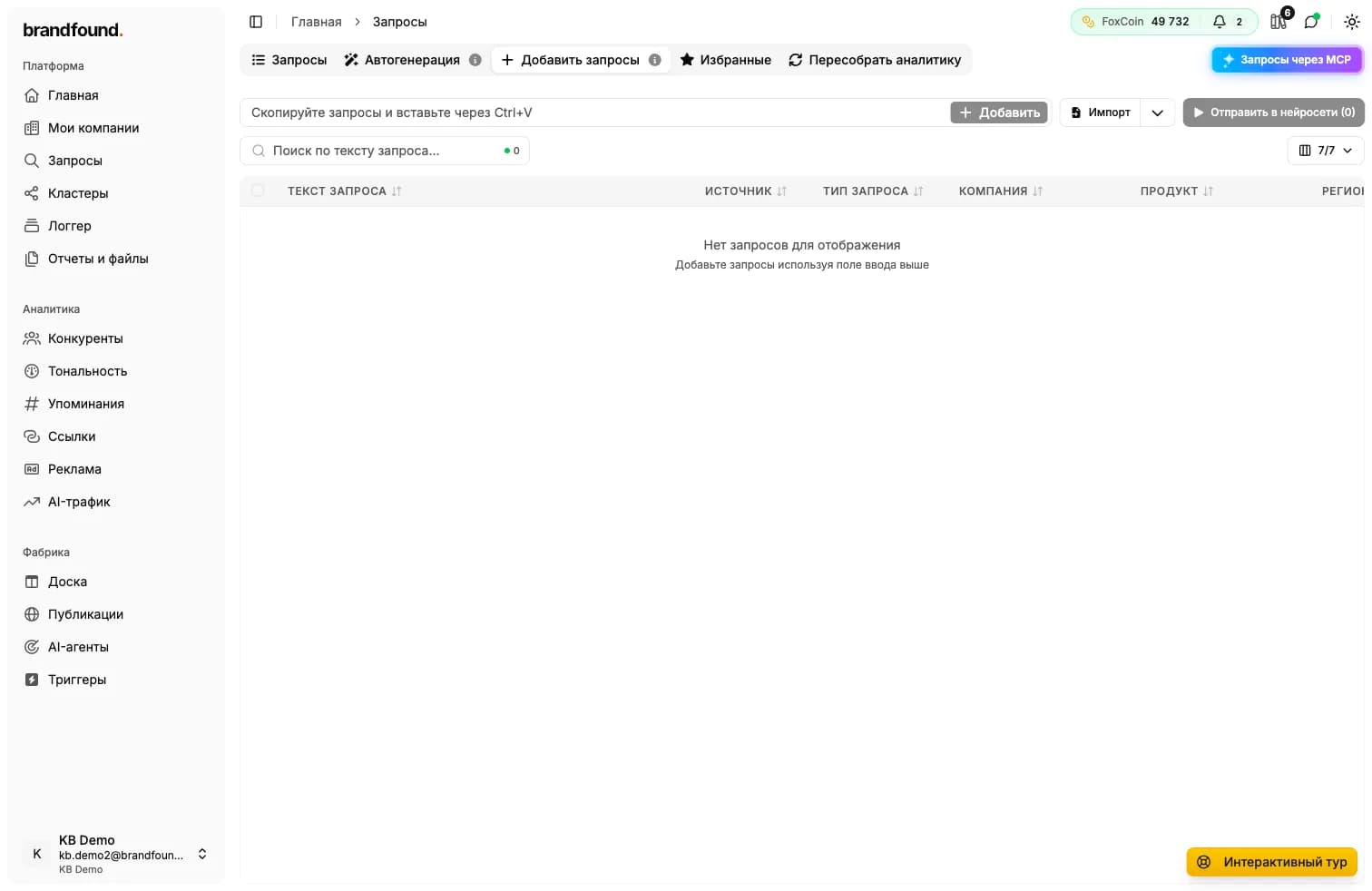
How to add queries
There are three methods, and you can combine them:
- One by one - enter a query and click “Add” to place it in the table below.
- As a list - copy a prepared list and paste it with Ctrl+V. The platform splits it into rows automatically.
- From a file - for hundreds of queries, upload a file using “Import”. A template is available beside it to download and fill in.
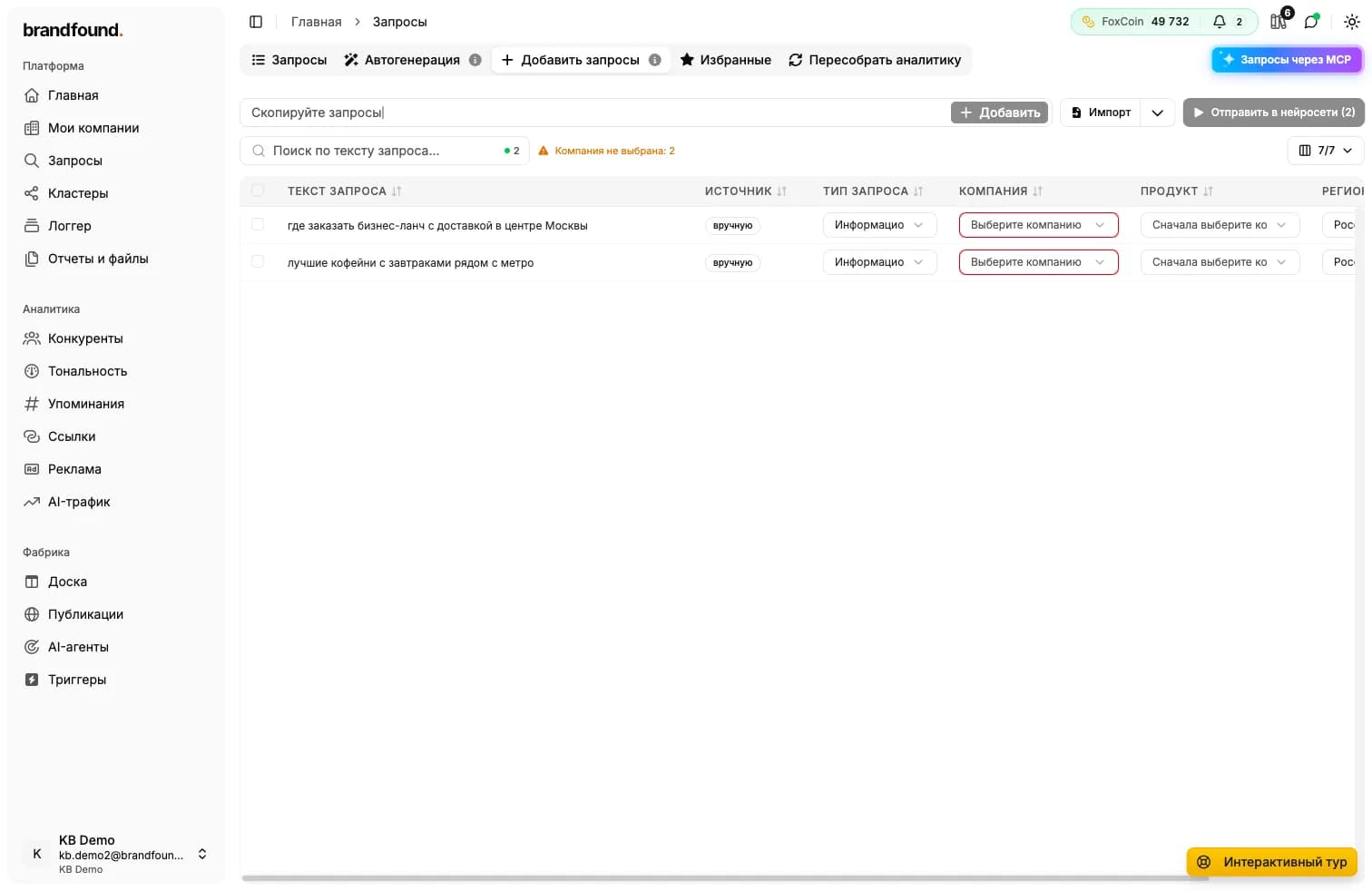
Row settings
For each added query, you can set:
- Type - the kind of question, such as commercial or comparative.
- Company - the brand the query belongs to. Required.
- Product - the brand’s product, if the query concerns a specific business line.
- Region - the language and country for the query.
Company
If many queries belong to the same brand, use “Apply company to all rows” instead of selecting it in every row.
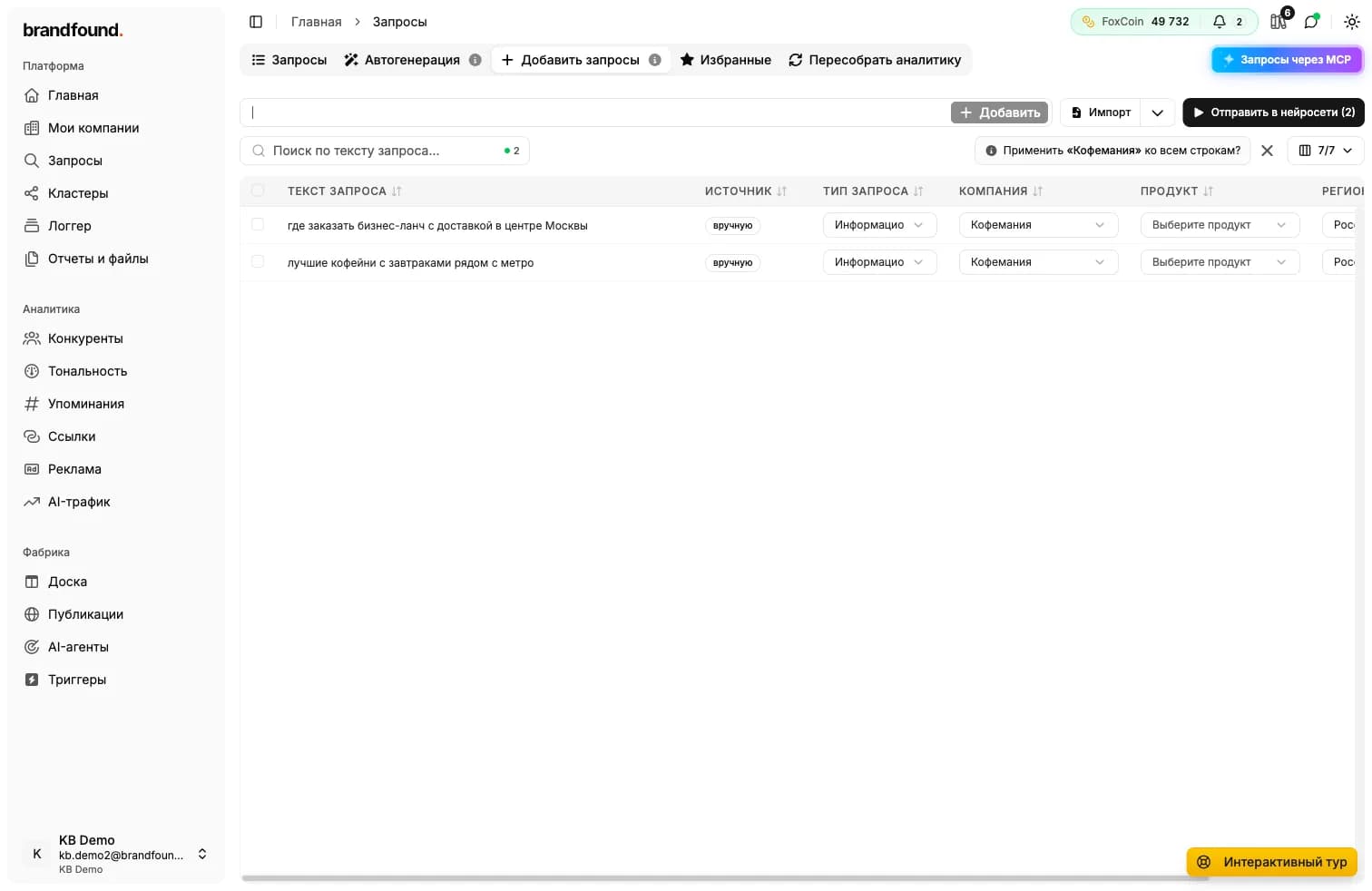
Sending to AI systems
Once every query has a company, click “Send to AI systems”. As with auto-generation, select the systems, review the cost and start the run. Queries enter processing and appear in the main list.
Sending to AI systems
New queries may not appear immediately in the main list: it shows queries with answers by default, while new ones are still queued. Change the “Run” or “Answers” filter to see them.
Continue reading
Didn't find what you need?
Drop us a line - we usually reply within a few hours on weekdays.