
Auto-generating queries
Auto-generation creates queries for your niche based on the questions your customers actually ask AI. Set the parameters, review the suggested list and confirm the run.
What is auto-generation?
Auto-generation creates queries for you. It uses the company structure and brand card to phrase questions as an ordinary person seeking a service would, before knowing about your brand.
It is the fastest way to populate a company with queries: get a ready-made list in a few minutes instead of writing dozens of questions yourself.
How to get started
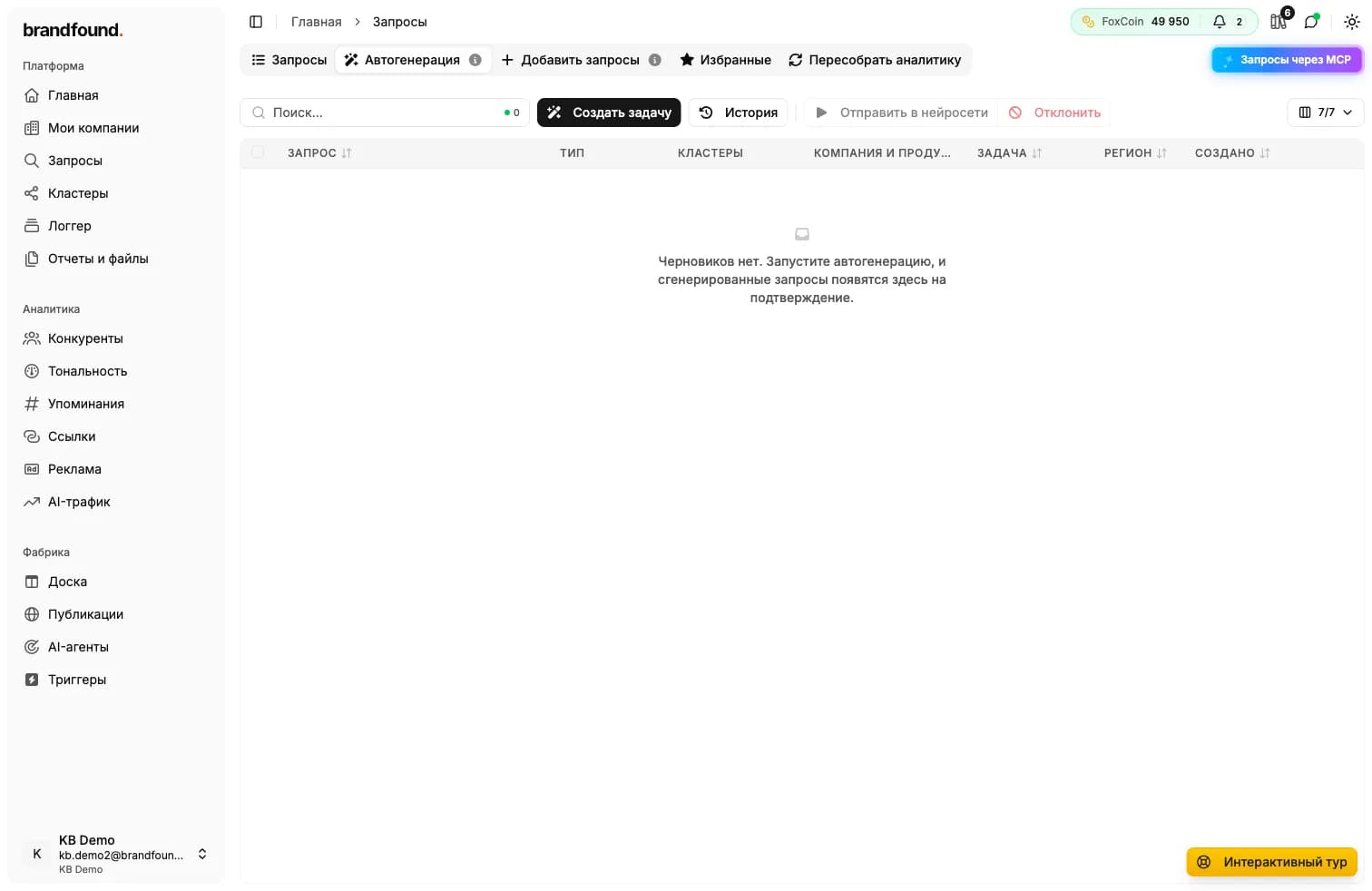
Open the “Auto-generation” tab in “Queries” and click “Create task”. You can also click “Auto-generate queries” on the company page.
Task settings
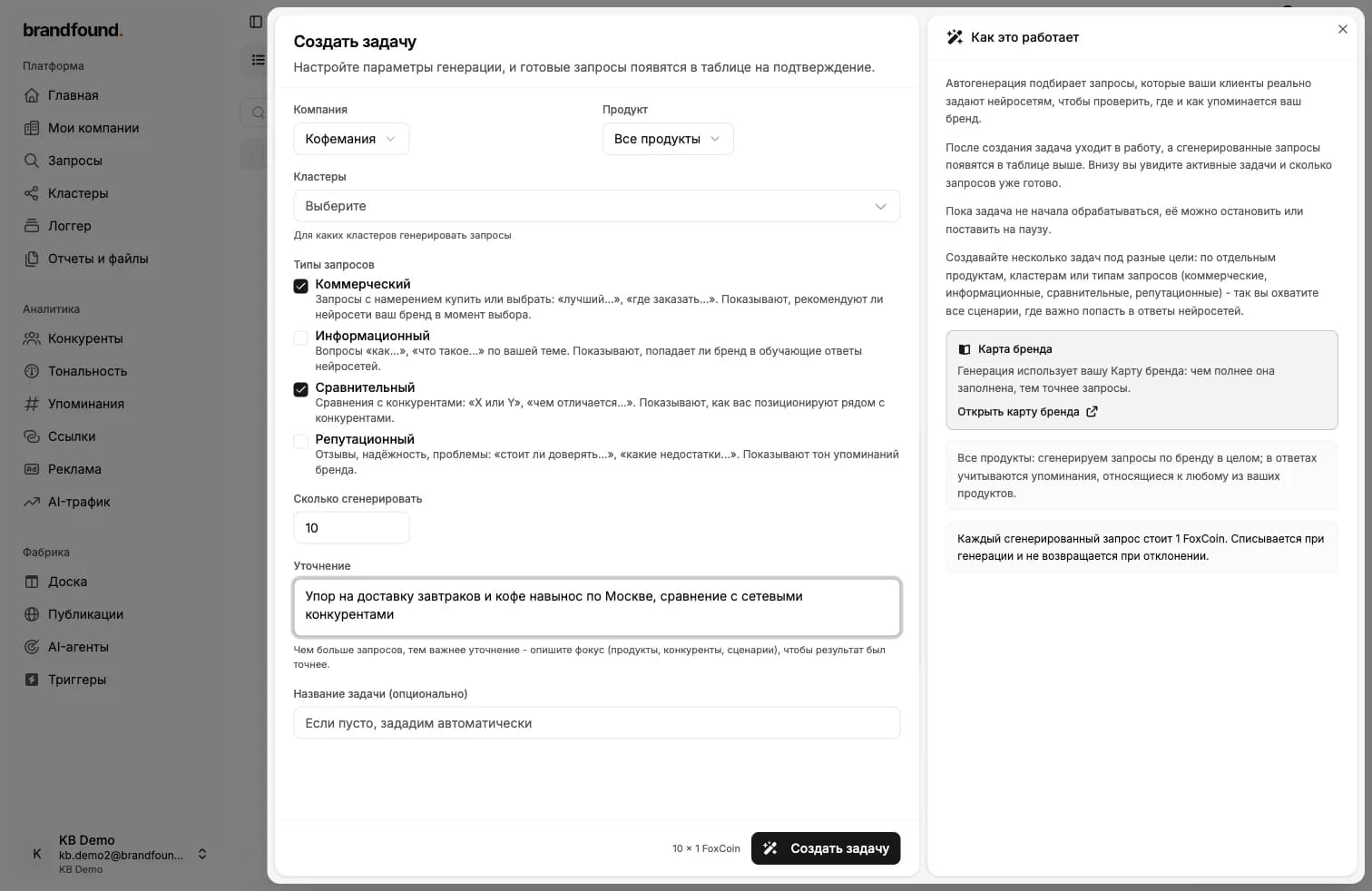
In the task dialog, specify the queries you need:
- Company and product - choose the brand; optionally narrow the task to a specific product.
- Query types - choose the kinds of questions you need (see below).
- Number to generate - the number of queries in the list.
- Additional instructions - add a free-form request, such as “focus on breakfast delivery and comparisons with chain competitors”.
Query types
Choose any of these four query types:
- Commercial - questions with buying or selection intent, such as “best…” or “where to order…”. They show whether AI recommends your brand when people are choosing.
- Informational - “how…” and “what is…” questions about your topic. They show whether the brand appears in educational answers.
- Comparative - competitor comparisons, such as “X or Y” or “how does… differ?”. They show how your brand is positioned alongside competitors.
- Reputational - questions about reviews and reliability, such as “can I trust…” or “what are the drawbacks…?”. They reveal the sentiment of brand mentions.
Additional instructions
Cost
Review before running
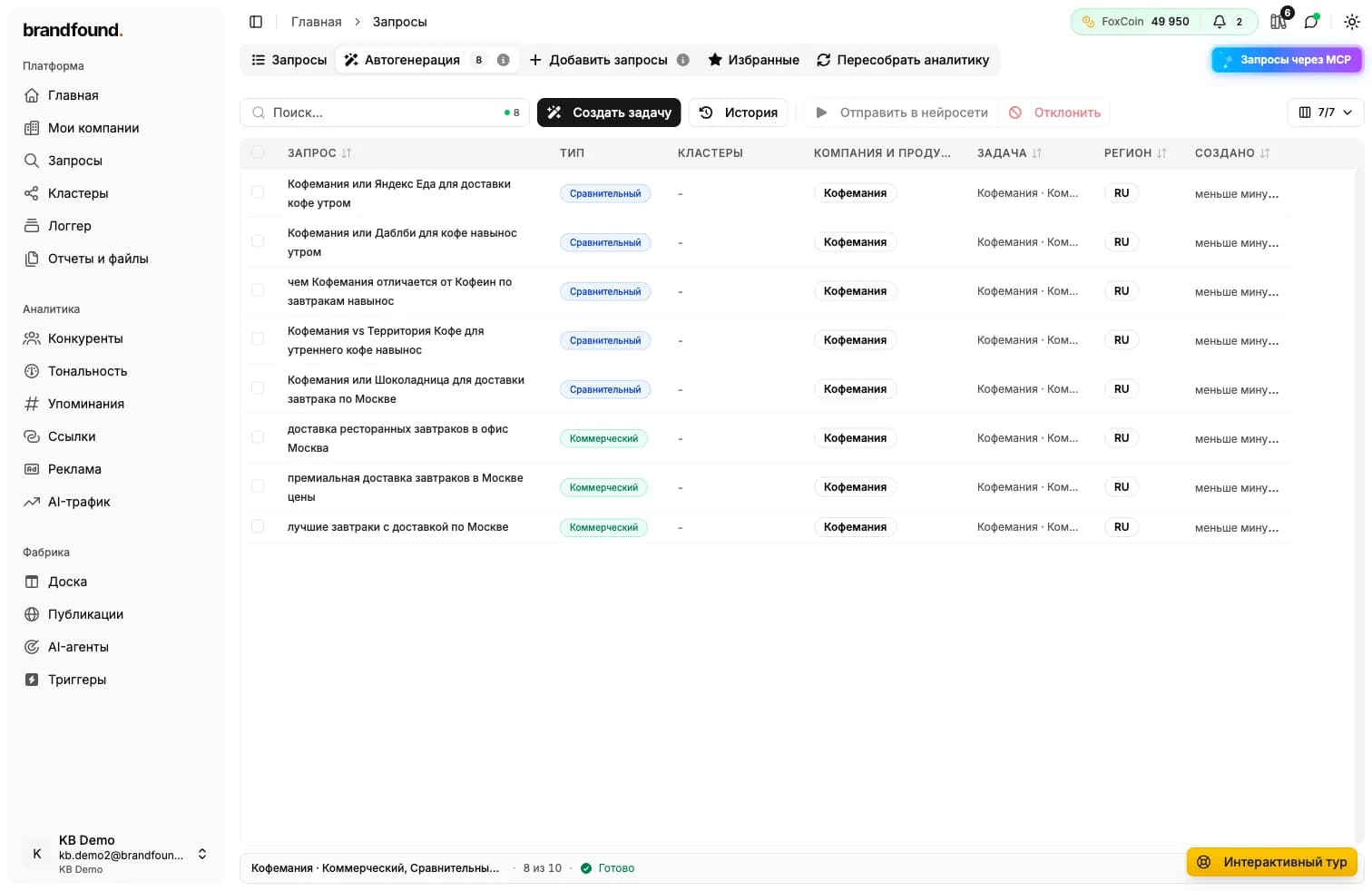
After the task is created, generated queries appear in the same tab for review. They are not sent immediately. Review the list, select the queries you want and choose:
- Send to AI systems - approve the selected queries and start a run.
- Reject - remove unwanted queries from the list.
This lets you control exactly what is sent to AI systems and avoid unnecessary spending.
Starting a run
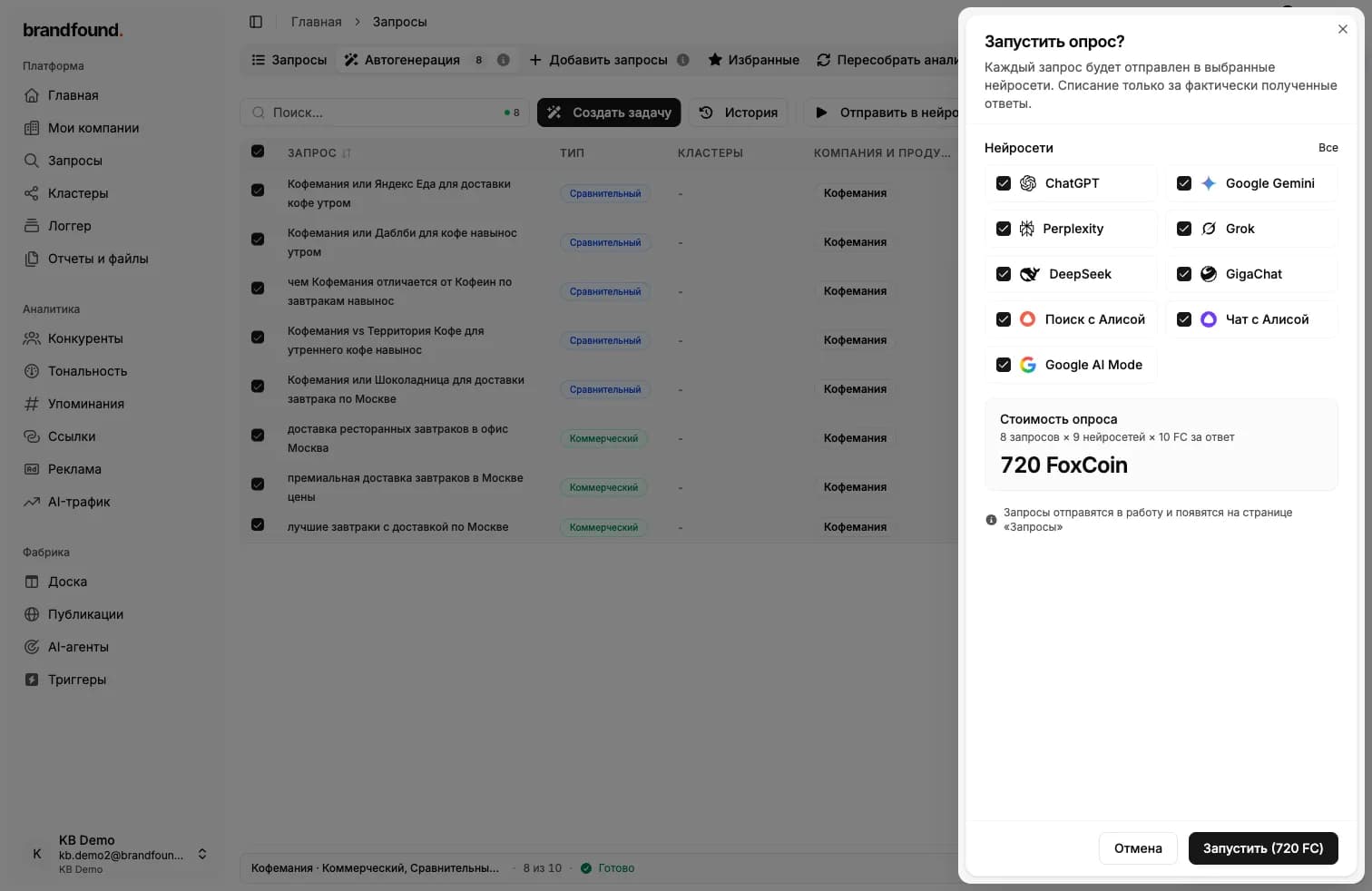
Click “Send to AI systems” to open the run dialog. Select the available AI systems and review the cost: the number of queries multiplied by the number of systems and the price per answer.
Starting a run
Continue reading
Didn't find what you need?
Drop us a line - we usually reply within a few hours on weekdays.