Command Palette

Search for a command to run...

Creating queries

You pick the company, product and query type, then send the queries to AI services in one of three ways: manually, via generation, or by importing a file.

Common parameters

Before creating queries, set the context. These parameters are the same for all three methods.

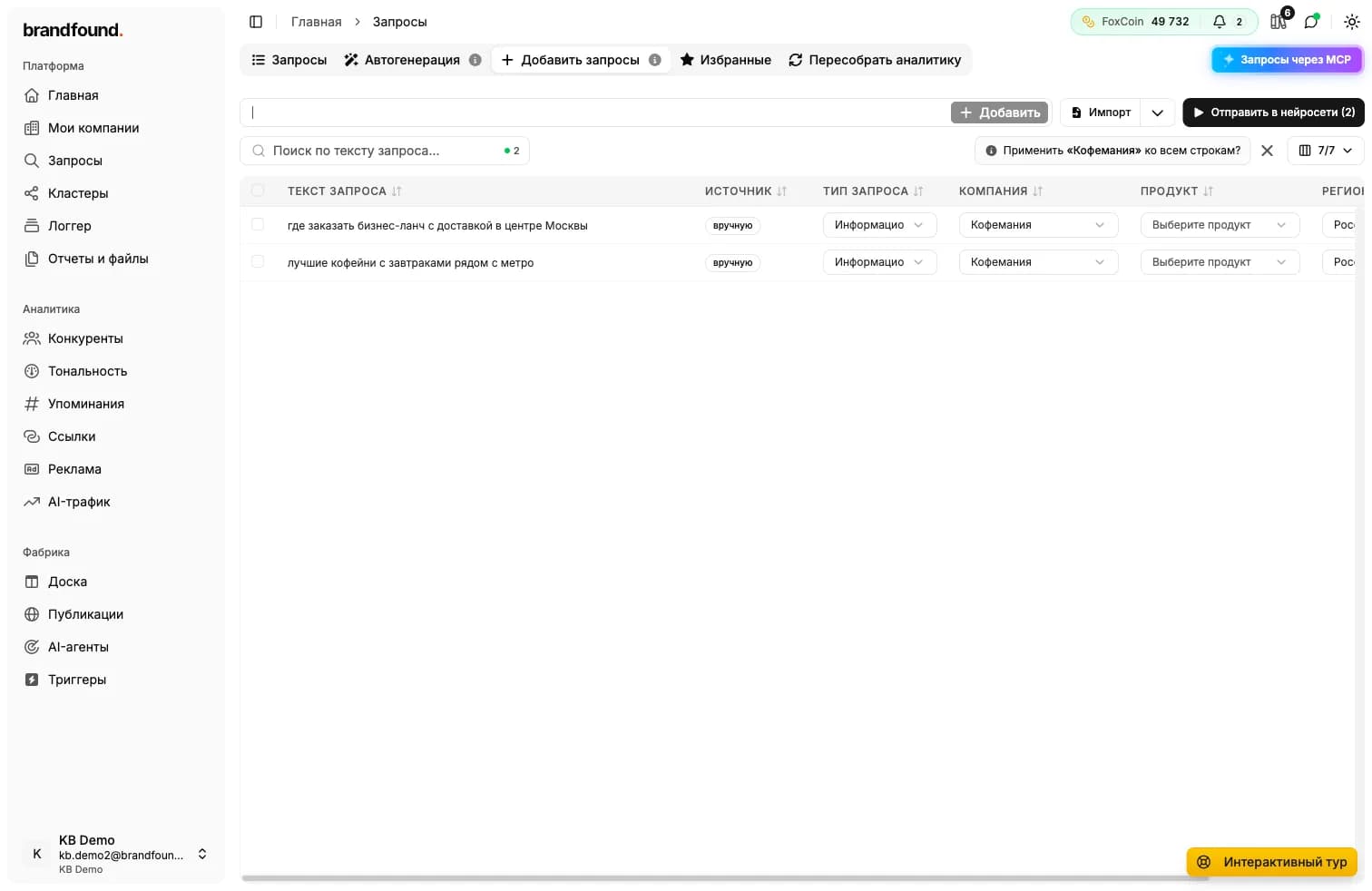
  • Компания. The company the queries will be attached to.
  • Продукт. Product of the company (optional). If you pick a specific product, analytics will let you slice metrics for it separately.
  • Тип запроса. Query type: neutral, comparative or negative. Read more about types in the auto-generation section.
Top of the Create queries section: company, product and query type selectors.

Option 1. Manually

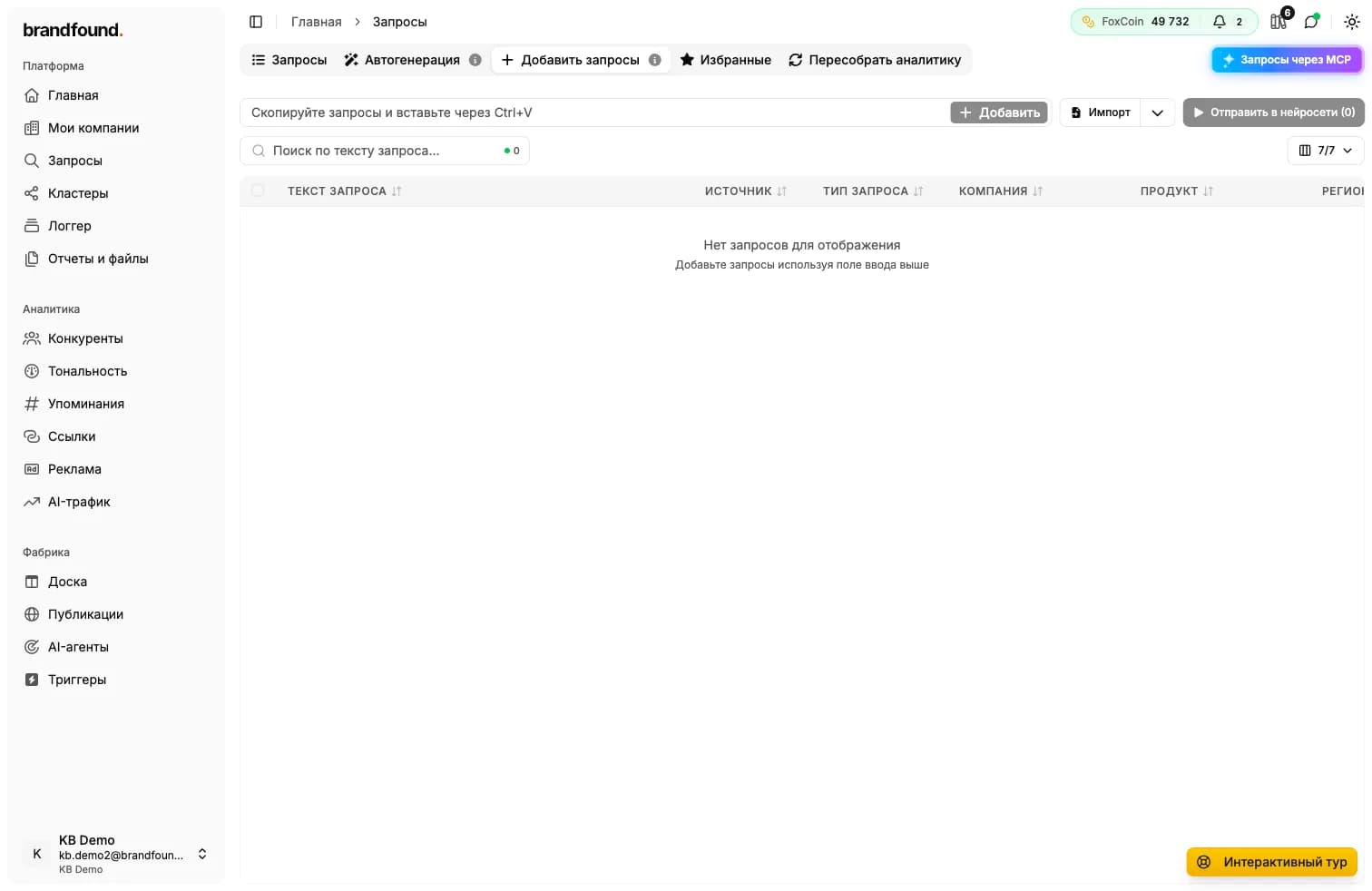
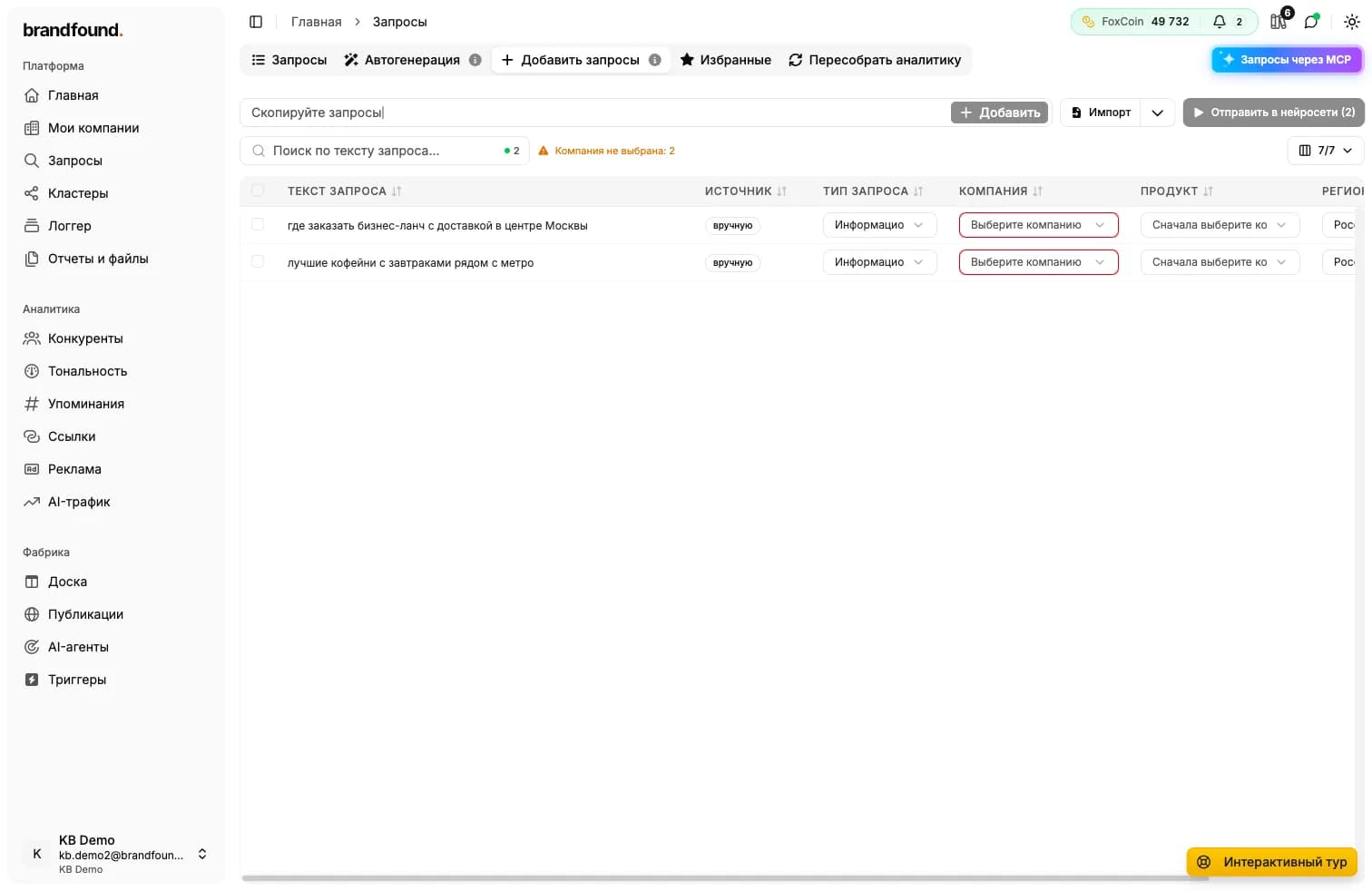
The simplest path if you already have queries written down. Type a query in the field, press Enter, and the query lands in the table below. For many queries at once, copy the list and paste with Ctrl+V - the system splits it into rows.

Hint under the input: Enter adds a query, Ctrl+V pastes a list, Backspace removes the last one.

When to use

When you already have ready-made wording from marketing or sales, like a search-terms export from an ads platform.
Query input field with the Enter / Ctrl+V hint and a table of added queries below.

Option 2. Generation

Click Generate in the top-right corner. The Query generation dialog opens.

The dialog pre-fills the current company, product and query type. You can write wishes in the Wishes (optional) field, e.g. «more comparative queries focused on mobile scenarios». Our model takes the wishes into account.

Clustering

In the same dialog you choose how to group the generated queries into clusters:

  • Automatic clustering. The model analyses the queries and either adds them to suitable existing clusters or creates new ones.
  • Pick clusters manually. Useful when you already know which clusters those queries belong to.
Query generation dialog: company, product, type, clustering toggle and wishes field.

Option 3. Import from a file

If you have hundreds or thousands of queries, it's faster to load them via a file. Next to the Import button there's a dropdown arrow: click it and choose Download template. An Excel file with examples opens.

Fill the template with your queries and upload it back using the Import button. The system reads the file and offers a review screen before adding.

Import button with the Download template dropdown next to it.

Next: AI services and mode

When queries are ready in the table, click Next. On step 2 you decide how to dispatch the queries to AI services.

Dispatch modes

One-time. Queries are sent to AI services right now, once. You also choose which services:

  • By defaults. Uses services and proportions from your auto-generation settings.
  • Selected. Pick specific services available on your plan.
  • All. The query goes to all services available on your plan.

Continuous (favorite). Queries go to favorites and refresh automatically on a schedule. Which AI services run them and how often is configured in the Favorite queries section.

Step 2: One-time or Continuous (favorite) mode and the list of AI services.

Review before adding

Before the final save, the Review queries before adding window opens. You see how many rows in total, how many unique go through, how many repeat within the list and how many already exist in the base. Duplicates are skipped by default, but you can flip the Allow duplicates checkbox.

After saving

Queries are added, but you may not see them in the table right away. That's normal: by default the table only shows queries with answers, and yours are still in the queue. Open the filters in the Queries section, set Has answers to All or Without answers, and you'll see the fresh ones.

Didn't find what you need?

Drop us a line - we usually reply within a few hours on weekdays.

Email us