

Что такое компания
Компания - это ваш бренд внутри платформы. Всё, что вы хотите видеть в ответах нейросетей - упоминания, тональность, сравнение с конкурентами - привязано к компании.
Внутри компании живут два вида элементов:
- Продукты. отдельные направления, услуги или товары бренда. У кофейни это может быть доставка завтраков, кондитерская, школа кулинарии. По каждому продукту потом можно смотреть аналитику отдельно.
- Конкуренты. другие бренды, рядом с которыми вы хотите видеть себя в ответах нейросетей.
Плюс у каждой компании есть карта бренда - набор заметок о бренде, которые платформа учитывает, когда придумывает запросы и готовит контент. Про неё есть отдельная статья.
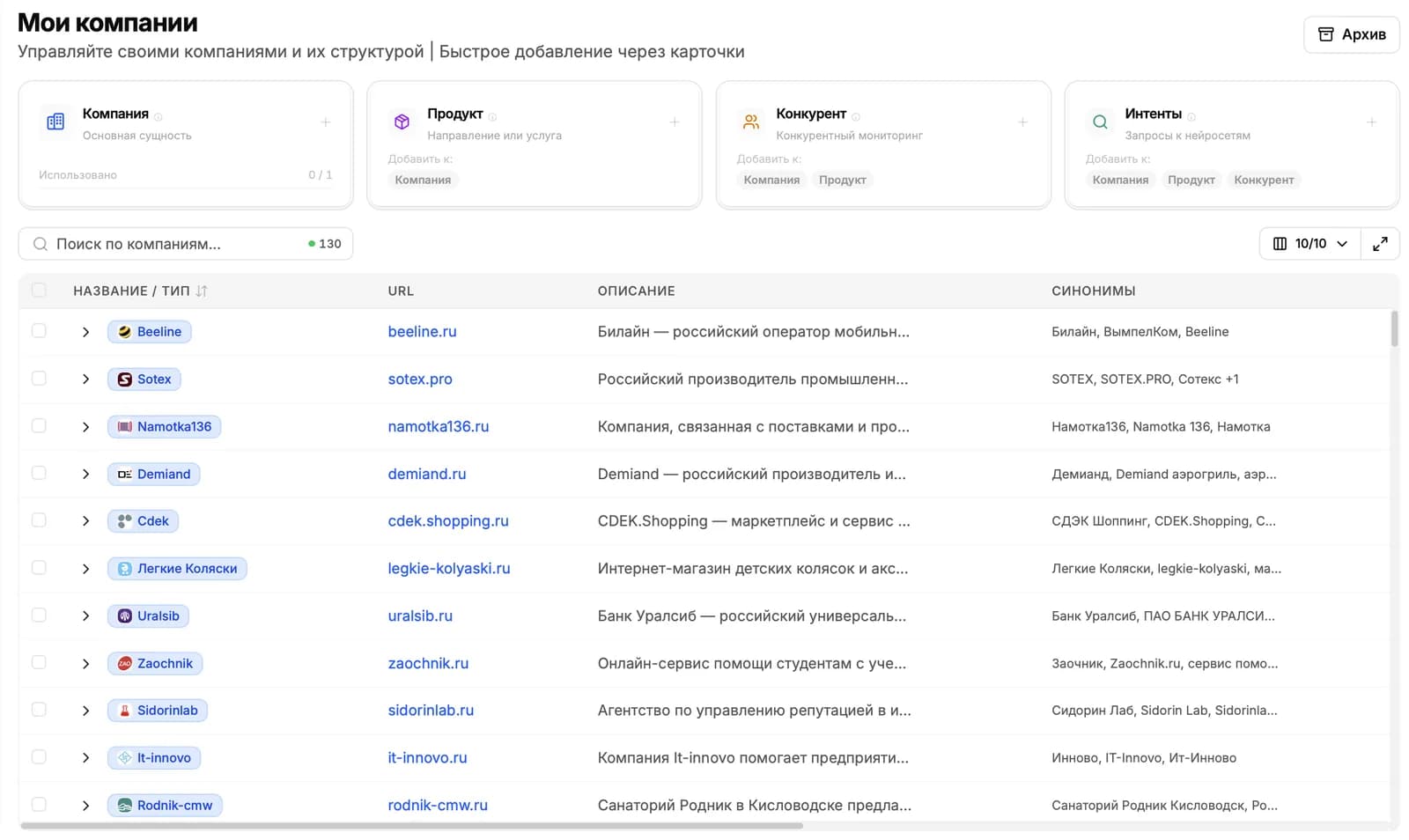
Как завести компанию
Нажмите «Создать компанию» - на дашборде или в разделе «Мои компании». Откроется короткий мастер из двух шагов.
Шаг 1. Компания
Заполните три поля - этого достаточно, чтобы платформа поняла, что за бренд:
- Название - как компания будет называться в интерфейсе и отчётах.
- Сайт - адрес сайта. По нему платформа изучит бренд на следующем шаге.
- Категория - сфера бизнеса. Помогает точнее подбирать запросы.
Региональность. Здесь же можно задать язык и страну, для которых платформа будет придумывать запросы. По умолчанию - русский язык и Россия, для большинства компаний менять ничего не нужно.
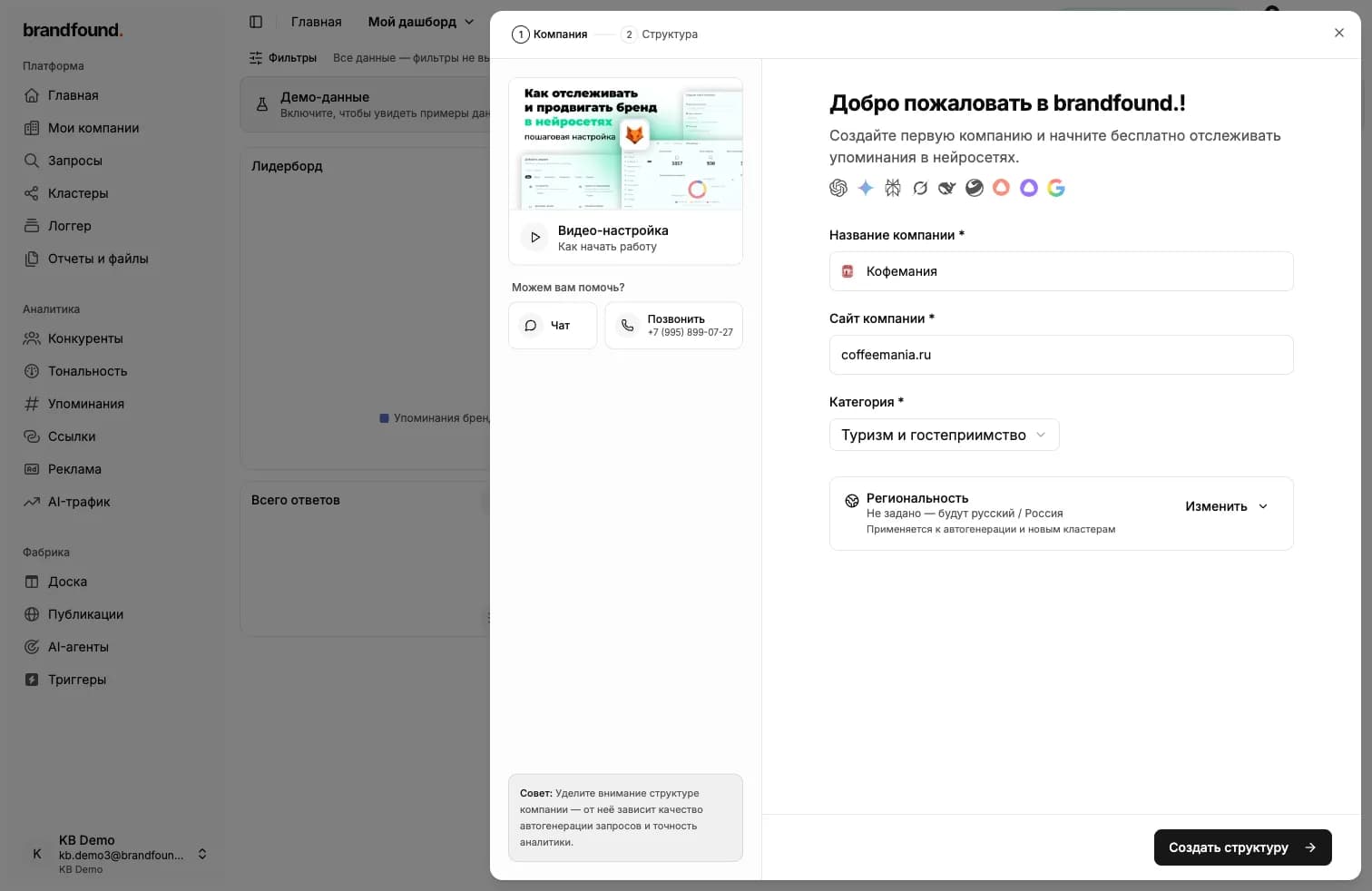
Шаг 2. Структура
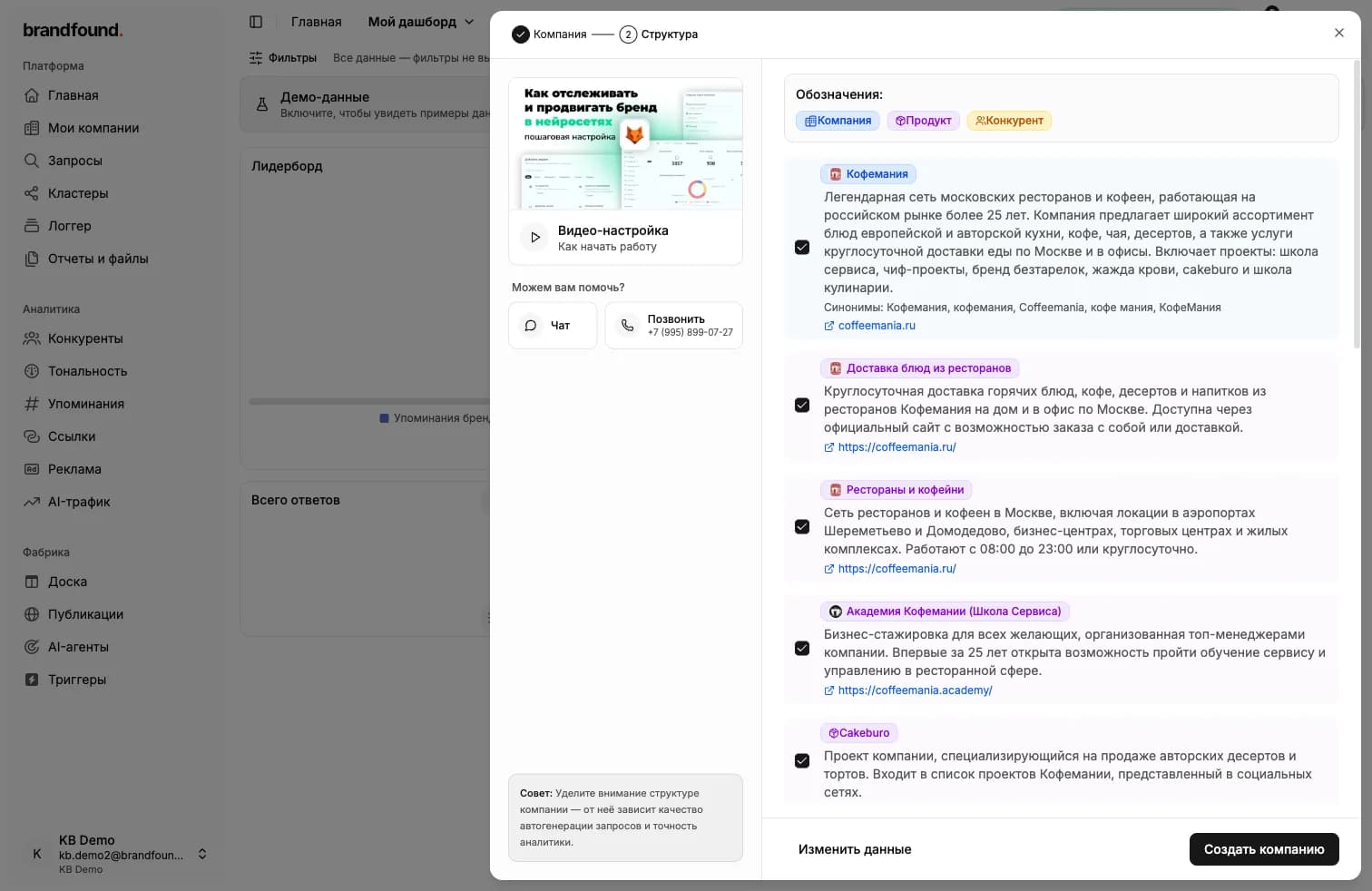
Нажмите «Создать структуру» - и платформа сама зайдёт на сайт, изучит его и за 15-30 секунд соберёт готовую структуру: описание компании, её продукты и конкурентов на рынке.
Всё найденное показывается списком с галочками. Вы можете:
- снять галочку с лишнего - оно не сохранится;
- нажать «Изменить данные», чтобы поправить названия и описания;
- оставить всё как есть, если результат устраивает.
Когда структура нравится - нажмите «Создать компанию». Бренд, продукты и конкуренты сохранятся сразу.
Что дальше
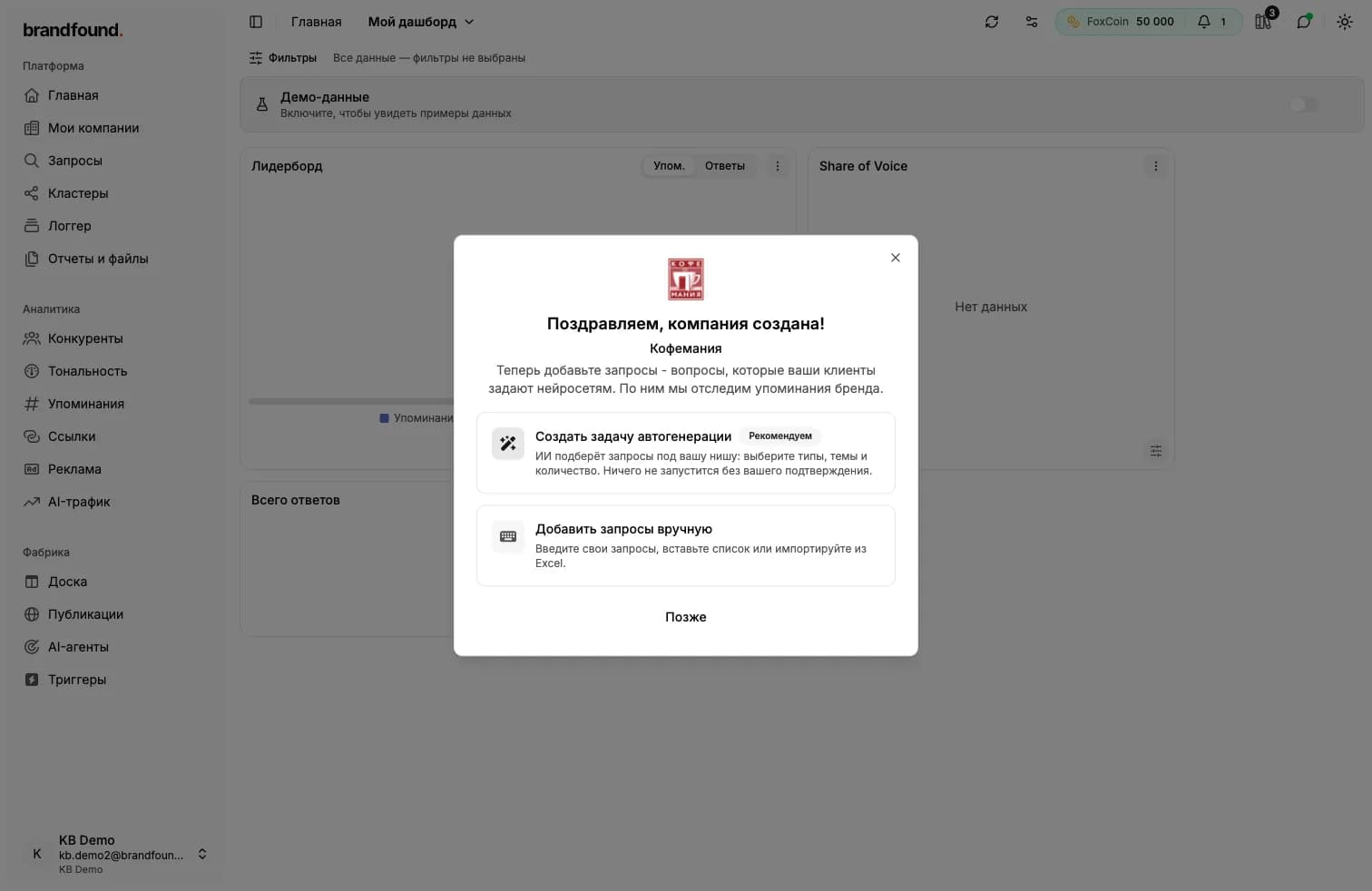
Сразу после создания появится окно с предложением наполнить компанию запросами - вопросами, которые ваши клиенты задают нейросетям. Именно по ним платформа отследит упоминания бренда. Три варианта:
- Создать задачу автогенерации - платформа сама подберёт запросы под вашу нишу. Ничего не запустится без вашего подтверждения. Про это есть отдельная статья.
- Добавить запросы вручную - ввести свои запросы или вставить готовый список. Тоже описано отдельно.
- Позже - закрыть окно и вернуться к запросам в любой момент.
Страница компании
Откройте компанию из списка - попадёте на её страницу с вкладками:
- Карта бренда - заметки о бренде, которые платформа учитывает при генерации. Есть отдельная статья.
- Синонимы - разные написания названия бренда.
- Продукты - направления и услуги бренда.
- Конкуренты - бренды для сравнения.
Здесь же, вверху страницы, есть кнопки «Автогенерация запросов» и «Редактировать».
Синонимы: зачем они нужны
В ответах нейросети один и тот же бренд может называться по-разному. Кофейню могут упомянуть как «Кофемания», «Coffeemania» или «кофемания москва». Если не указать эти варианты, платформа засчитает только точные совпадения с названием, и часть упоминаний потеряется.
При создании через структуру синонимы подбираются автоматически - их можно проверить и дополнить на вкладке «Синонимы».
В синонимы не пишут ссылки
Дальше читать
Не нашли ответ?
Напишите нам - отвечаем по будням в течение нескольких часов.